


EDID stands for Extended Display Identification Data.
It’s information sent from a display (TV, monitor, projector) to a source (laptop, media player, PC).
That information tells the source what resolution, refresh rate, and audio formats to use.
Most of the time, this happens automatically and you never notice it.
Occasionally, EDID becomes the problem.
What EDID Does
When a source connects, it asks the display:
“What can you handle?”
The display answers with its EDID:
- Supported resolutions
- Supported refresh rates
- Supported audio formats
The source adjusts its output to match.
That’s it.
No magic. No intelligence.
Just a capability list and a decision.
Why EDID Causes Problems

EDID issues usually appear when the system is no longer simple.
Common situations:
- An HDMI switch or AV receiver in the path
- An HDMI extender or converter
- More than one display with different capabilities
Now the source may receive conflicting EDID information.
When that happens, it might:
- Pick the wrong settings
- Fall back to something unexpected
- Fail to output video at all
What EDID Problems Look Like
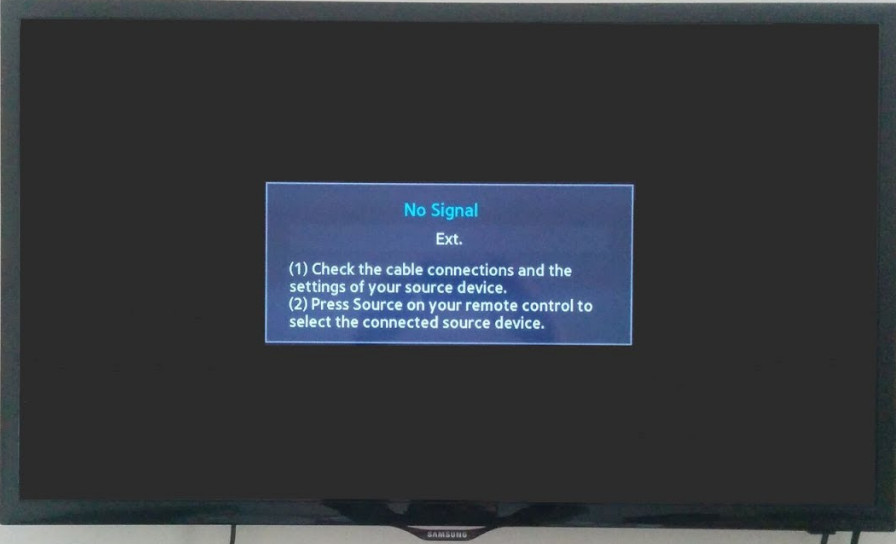
EDID problems don’t announce themselves.
They usually look like:
- Wrong resolution
- Video but no audio
- Screen works after reboot, then fails again
- One display works, another doesn’t
Because it comes and goes, it feels random.
It isn’t.
What To Do When You See This

First, reset the negotiation:
- Power off everything
- Turn on the display
- Then the switch or receiver
- Turn on the source last
If that fixes it, EDID was likely involved.
For more stable systems:
- Use devices with EDID control or locking
- Avoid mixing very different display resolutions
- Don’t rely on “auto” settings in complex signal paths
Bottom Line
EDID (Extended Display Identification Data) tells devices how to talk to each other.
It usually works quietly in the background.
When systems get more complex, it can also be the source of the problem.
Control EDID, and many “random” video issues stop being random.